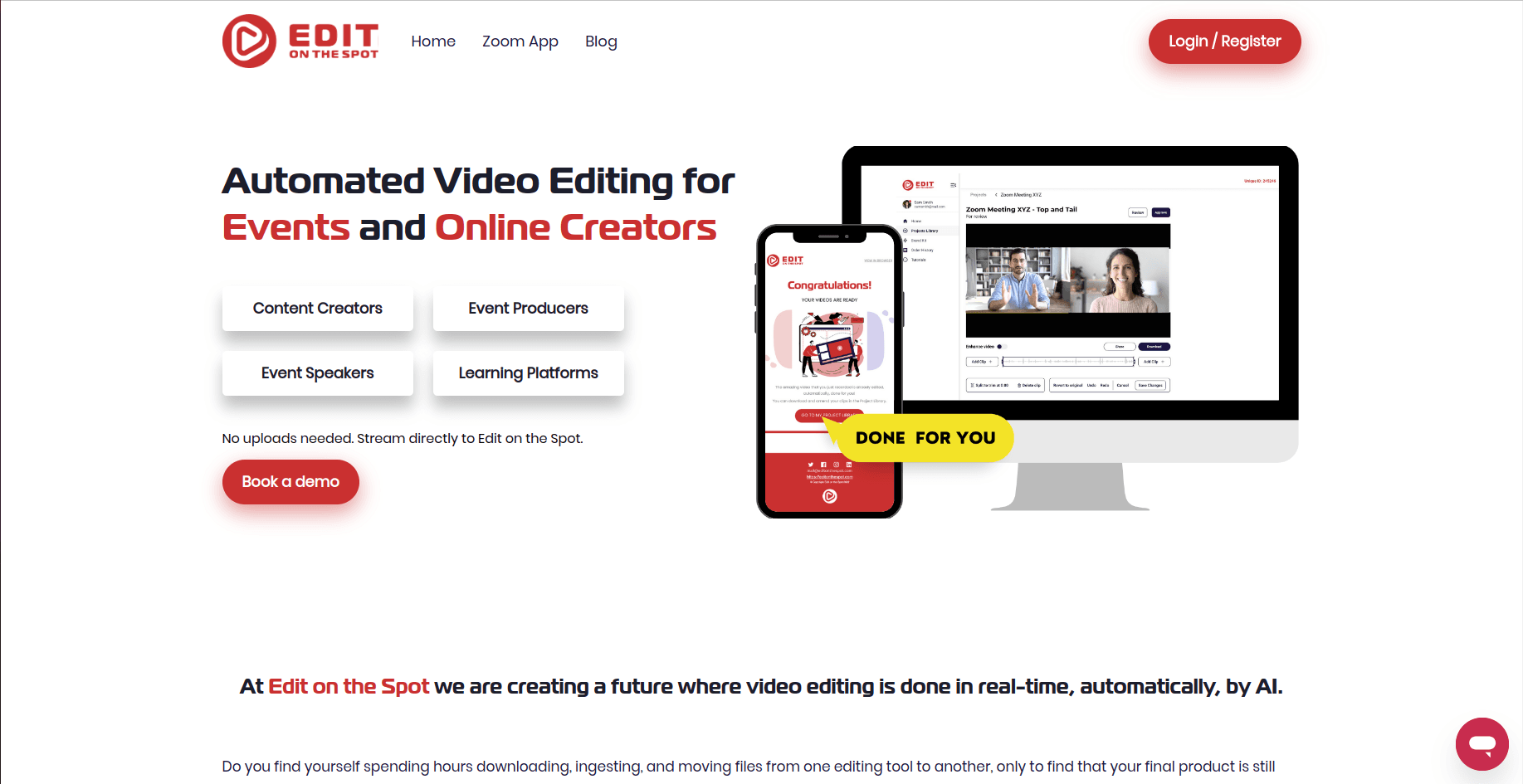
1. Click Login at https://editonthespot.com
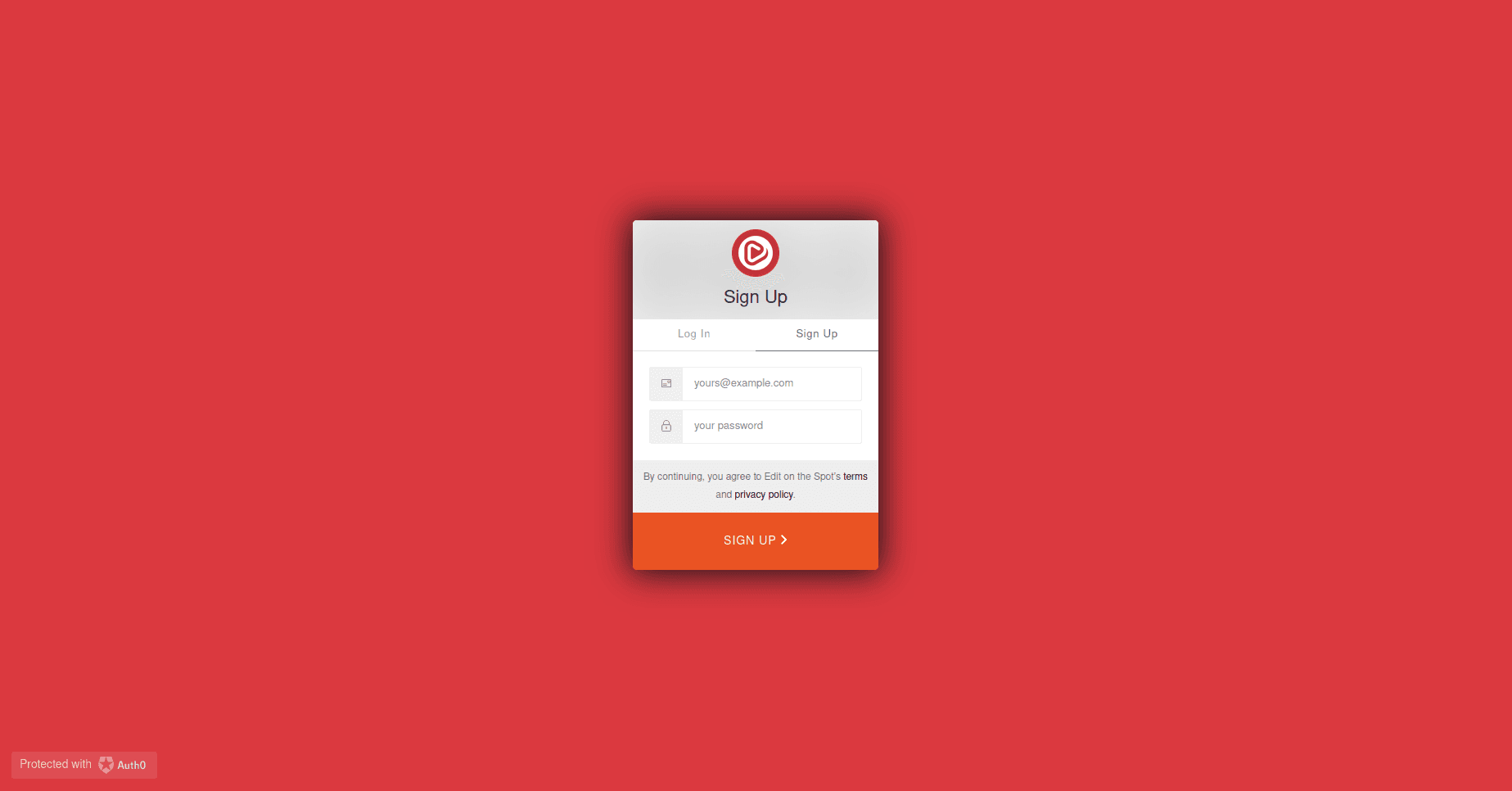
2. Create your account.
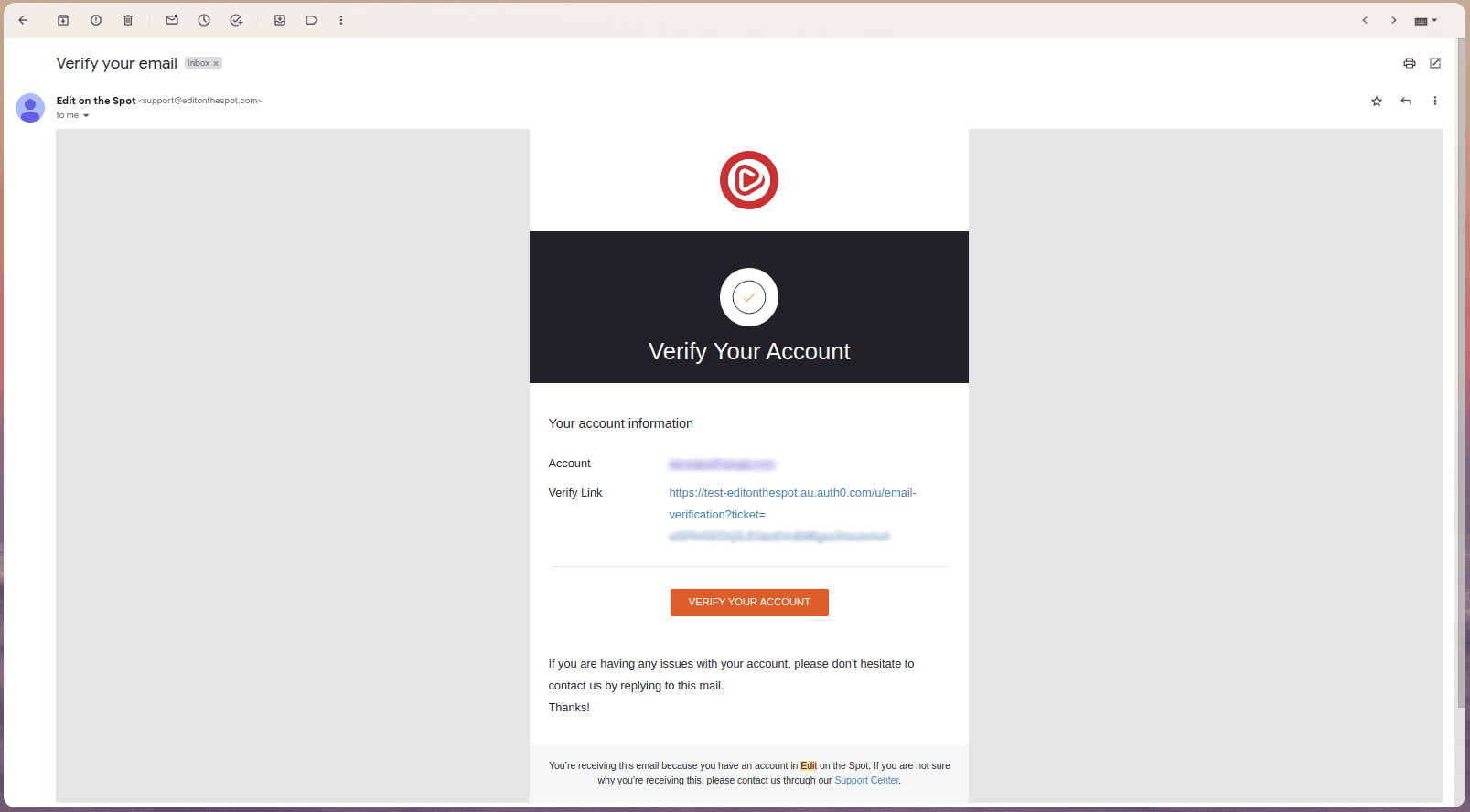
3. Verify your account by clicking the link sent to your email.
4. After verifying your account, log in by following steps 1 and 2 once again.
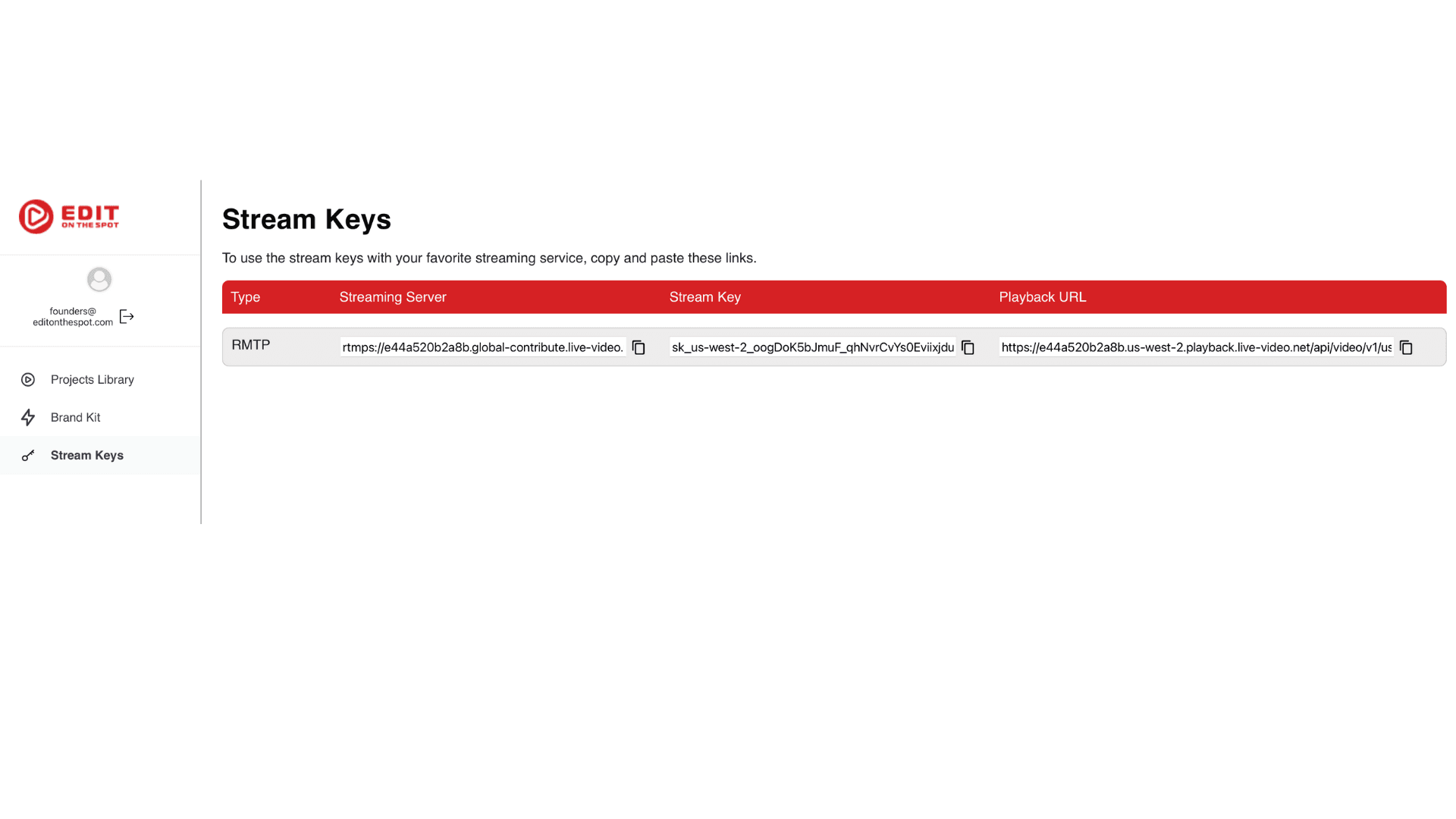
5. Once you've successfully logged in, head over to the 'Stream Keys' page.
6. On this page, you'll find your unique Streaming Server, Stream Key, and Playback URL. Be sure to copy and paste these details as you'll need them later.
7. In the Custom Streaming Meeting app of Microsoft Teams, copy and paste the Streaming URL and Stream Key from Edit on the Spot to the Input fields.
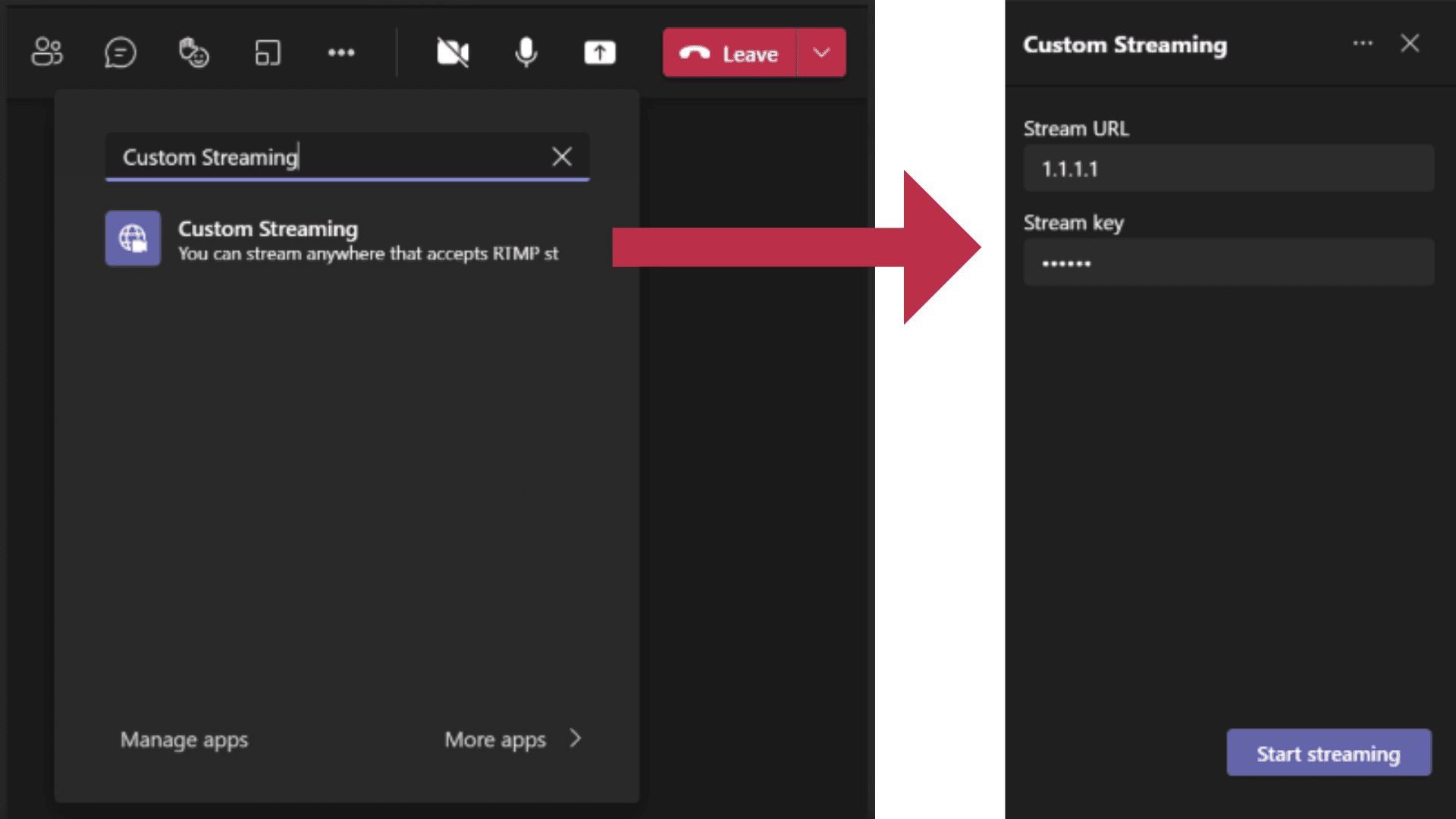
8. After you fill out these fields, the Start streaming button will enable, allowing you to begin streaming. Click the Start Streaming button and a final prompt will appear to confirm that the stream should begin.

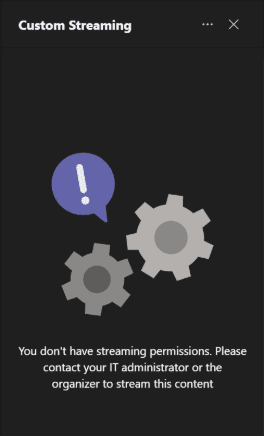
9. If you do not have the live streaming mode policy available to you, you will see a message in the app directing you to contact your IT administrator.
Technical Limitations:
Contact us
Got a question? Find the answers you seek in our help section, email us directly or fill in the form and our dedicated customer support team will be sure to get back to you within 48 hours.
© Copyright Edit on the Spot 2023